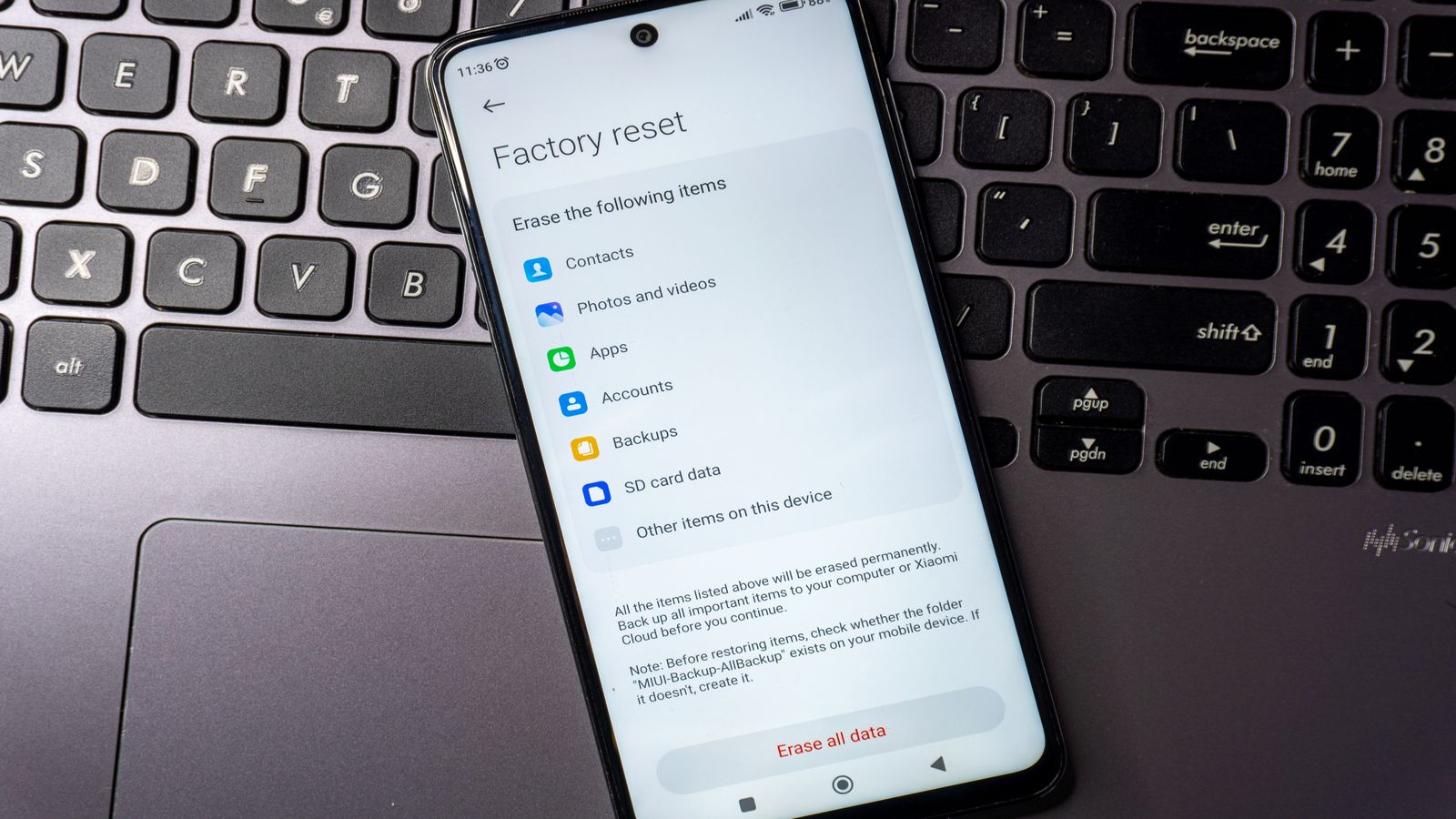
The State of Android Backups: Still Abysmal
Backup quality is a credible proxy for a platform's reliability as a daily driver: if switching phones or recovering from a factory reset leaves you spending hours re-configuring apps and accepting that some data is simply gone, the platform has failed at one of its most basic responsibilities. Android has had a backup system since Android 2.2's cloud backup API in 2010. Fourteen years later, the experience of restoring from a Google backup remains inconsistent, partial, and dependent on per-app developer decisions that most users have no visibility into. This piece belongs in the journal and intersects with the concerns documented in the privacy and security topic hub. It also informs the overall Android ecosystem picture in the review section. The assessment here covers what Google's backup infrastructure actually stores, where the significant gaps are, the iOS comparison that provides the most useful benchmark, and the practical workarounds that partially compensate.
The short version
Google's Android backup system backs up app data only when individual app developers have implemented the Android Backup API and have not disabled it. Many apps — particularly banking apps, authenticators, messaging apps with end-to-end encryption, and games — explicitly opt out of backup or are excluded by the system. Photos and videos are handled separately by Google Photos. Call logs, SMS, and contacts sync to Google accounts. App settings, game progress, local-only app data, and notification history are frequently not backed up at all. Restoring to a new phone re-installs apps and recovers what was backed up, but the gaps are not reported — you discover them when the data is missing.
What the backup system covers
Android's backup architecture has two distinct systems that are often conflated:
Google Account sync: Contacts, Calendar events, Chrome bookmarks, Chrome passwords (via Google Password Manager), Gmail, and Google Drive files sync continuously to your Google account. This is not really a backup — it is sync. These items are available on any device signed into your account. Restoration is automatic and reliable for these data types.
Android Backup Service (ABS) / Auto Backup: Introduced in Android 6.0, Auto Backup stores up to 25 MB of app data per app to Google Drive. Apps must target API level 23 or later and must not have disabled backup via the android:allowBackup="false" manifest flag. The backup happens automatically when the device is connected to WiFi, charging, and idle. The stored data includes SharedPreferences files, databases, and other files the app specifies through its backup configuration.
Device-to-device transfers: When setting up a new phone and selecting "Copy data from old phone," Android can perform a direct wired or WiFi transfer that copies significantly more data than the cloud backup — including app data that has not been synced to Google's servers. This path is more complete but requires physical access to both devices simultaneously.
In testing across multiple Android device migrations (Pixel 6 to Pixel 7, Samsung to Pixel), the cloud backup restoration path consistently missed: app-specific settings for third-party applications that opted out of backup, authenticator app tokens (expected, for security), game progress for games that use their own cloud save systems (because they did not opt into Google's), and widget placements and home screen layouts (restored approximately 60% of the time, with the remainder defaulting to a generic layout).
The opt-out problem
The central structural issue with Android backup is that it is opt-in at the implementation level and the default is unreliable. The Android manifest flag android:allowBackup defaults to true, which means apps are included in backup by default — but "included" does not mean "backed up correctly." An app that allows backup but stores its critical data in a location not covered by Android's default backup rules (such as external storage, or in files excluded by its backup configuration) will appear to back up while actually losing data.
The apps most likely to have meaningful data loss are the ones users care most about:
Authenticators (2FA apps): TOTP authenticator apps correctly disable backup by default because backing up authentication secrets to a Google-controlled cloud service undermines the security model. Google Authenticator changed its policy in 2023 to enable cloud backup, which created its own controversy about whether encrypted backup of authentication credentials to Google's servers is acceptable. Most alternatives (Aegis, Authy, FreeOTP) maintain either no backup or local-controlled backup.
Banking apps: Many banking apps set allowBackup="false" as a security measure. This means switching phones requires re-enrolling in the app's device authentication process. On many banking apps, this means a phone call or branch visit.
Messaging apps with E2EE: WhatsApp, Signal, and Telegram all use their own backup mechanisms. WhatsApp's backup to Google Drive is separate from Android's backup system. Signal's backup requires manual export. Losing access to your backup means losing your message history entirely.
Android pre-6.0: Backup relied on individual apps implementing the BackupAgent API — an explicit development task that most developers skipped. Backup coverage was minimal and largely limited to Google's own apps. Restoring to a new Android device meant reinstalling apps from the Play Store and accepting that all app data was gone.
Android 6.0+ with Auto Backup: The system is more capable but the fundamental limitation shifted from "developers must opt in" to "developers can opt out (and many important ones do)." The 25 MB per-app limit is often sufficient for settings and small databases, but inadequate for apps with substantial local data. The gap between what users expect ("my phone backed up") and what actually happened ("some apps backed up, some didn't, which ones weren't reported") remains wide.
The iOS comparison
iOS's backup system differs in a way that matters: iCloud Backup is more comprehensive by default, and the gap between what users expect and what is actually backed up is smaller.
iCloud Backup covers app data across all apps by default unless explicitly excluded. Developers can mark specific data as excluded from backup (local caches, for example), but the opt-out is at the data level rather than the app level. The full backup includes home screen layout, app data, photos (if iCloud Photos is not already syncing them separately), messages (if iCloud Messages is not syncing them), and device settings.

The practical difference is visible when switching phones. An iOS user who restores from an iCloud backup onto a new iPhone gets a phone that looks and behaves like their old one, with the overwhelming majority of app data present, within minutes. An Android user restoring from a Google backup gets apps re-installed with varying completeness of data recovery, no reliable indication of what was or was not restored, and typically several hours of manual reconfiguration.
Google has made genuine improvements to the backup infrastructure. Android 9 added end-to-end encryption for backup data using the device's lock screen PIN/password, storing an escrow key with Google that can only be decrypted when you authenticate. This is a meaningful privacy improvement over unencrypted cloud storage. Google One backup (available on Android 6+) consolidated device backup, Photos, and Drive storage under one management interface. These are real improvements in security and discoverability — but they do not address the fundamental problem of apps opting out or backing up incomplete data.
What Google Photos covers and what it doesn't
Photos and videos on Android have their own backup path through Google Photos, separate from the Android Backup Service. Google Photos backs up camera roll contents and can sync photos from specific folders. This is reliable and works independently of the device backup.
What Google Photos does not cover:
- Screenshots stored in non-standard locations
- Photos downloaded into messaging app folders that have not been added to Google Photos library sync
- Photos stored on microSD cards (unless Photos is configured to back up that storage location)
- Video files in formats Google Photos does not support or files over the 10 GB individual file limit
Many users discover after a factory reset that videos recorded by third-party camera apps were stored in a custom folder that Google Photos was not syncing. The Google Photos app backs up photos from the DCIM folder by default and from any folder the user has added to the backup configuration. Folders added by apps (GCam ports, cinema-mode camera apps, slow-motion camera apps) frequently create their own directories that are not in the default backup scope.
Practical mitigation
Given the gaps, the approaches that meaningfully improve backup completeness:
Use device-to-device transfer when possible: When replacing a phone (rather than recovering from loss or damage), the direct device-to-device transfer via cable copies significantly more data than cloud backup. Block off thirty to sixty minutes and use the physical transfer path.
Export explicitly for critical apps: For apps with data you cannot afford to lose — authenticators, messaging apps — use their built-in export or backup features before any device change. Store those exports somewhere other than the phone being replaced. For Signal, this means creating a local backup file and moving it. For Aegis, exporting the vault. These are manual steps, but they are reliable.
Audit your backup configuration: Android's Settings > Google > Backup shows which apps have backed up recently and approximately how much data. This is not a complete audit — it shows apps that participated in backup, not whether their backup was complete or whether data not in backup scope was missed — but it reveals apps that have not backed up at all.
Google One transfer: Restoring from a device backup taken recently is more reliable than relying on the incremental sync backup. If you are changing devices on a schedule rather than in an emergency, deliberately trigger a full backup before the transfer.